My Singing Monsters Karaoke Family Sharing, Remote Play, and Cross-Machine Saves
Karaoke has no online co-op. Here is how to share a library, stream a stage, and keep saves in sync without inventing a feature that does not exist.
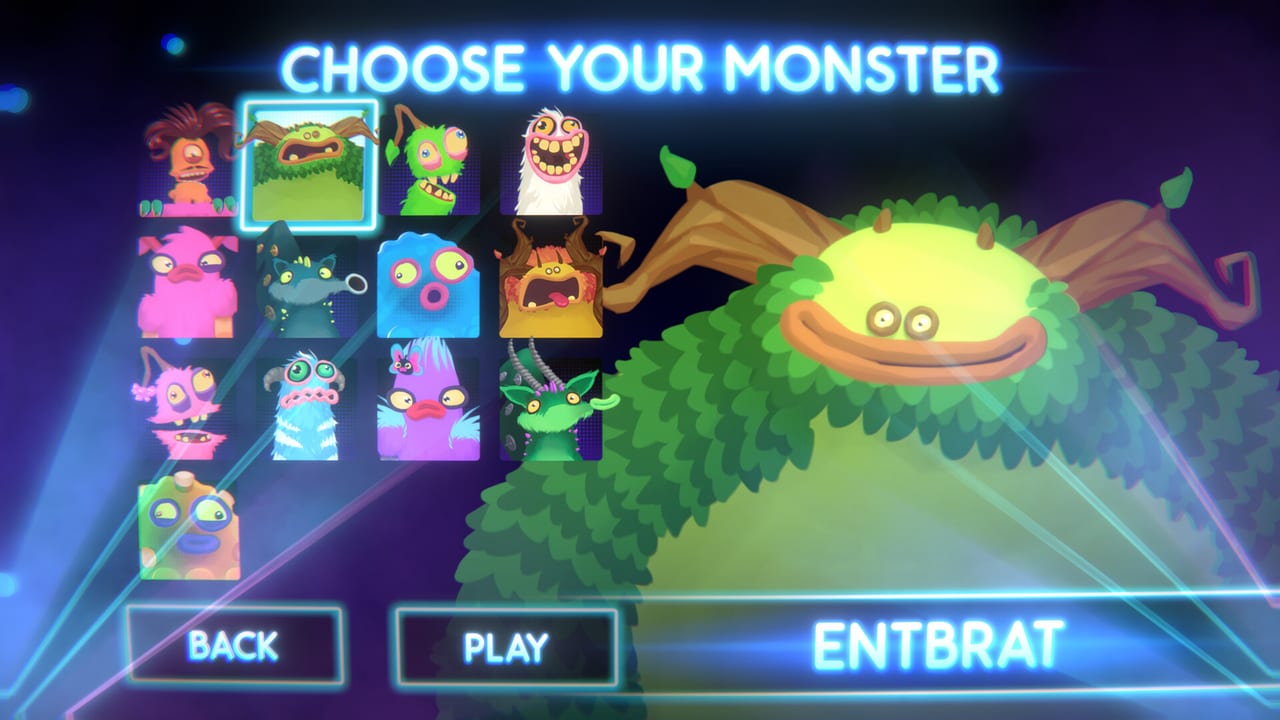
My Singing Monsters Karaoke is single-player. Steam lists it that way on the store page and the multiplayer guide repeats the point. That does not mean nobody else can touch the toy. Steam Family Sharing, Steam Remote Play, and Steam Cloud each let a household enjoy the same library with different constraints. This page is the practical guide to all three, with the limits clearly stated.
If you came from a pitch-slider game that has split-screen, this page is the honest answer. Karaoke has no split-screen. Rare Pack does not unlock co-op. Big Blue Bubble did not publish an online mode. Anything you do with a friend or a sibling runs on Steam’s existing plumbing, not on Karaoke’s own networking layer.
Steam Family Sharing: how it actually works
Steam Family Sharing lets a second Steam account borrow your library on a separate machine, with limits. The library owner must be offline when the second account plays. Family Sharing respects Steam’s usual DLC rules: if you own the base game but not Rare Pack, the borrowed session does not include Rare Pack. Day One Pack is free, so it follows the base game.
If your sibling or roommate borrows your library, they will see your base game and your free Day One Pack. They will not see your Rare Pack unless they buy it themselves or borrow from a household member who owns it. The Rare Pack page has the DLC reasoning.
Family Sharing also has an eight-hour lockout. If the library owner wants to play, the borrowing session ends. That is a Steam-wide rule, not a Karaoke feature. Plan your sibling karaoke nights accordingly.
Steam Remote Play: streaming, not co-op
Steam Remote Play streams a single player’s game to another machine. The far end sees the picture and hears the audio. The far end does not control the inputs. That makes Remote Play useful for showing off a clean run on a phone or a TV, not for playing together.
In Karaoke’s case, Remote Play lets a parent stream the toy to a Steam Deck in the kitchen while they cook, or a streamer send the picture to OBS. It does not let two players share a stage. Steam Remote Play Together, the variant that adds a second controller to a couch game, does not apply to Karaoke because Karaoke does not accept a second player’s input.
If you want the karaoke-with-friend feeling, the realistic substitute is couch turns: two people take turns on the same controller in the same room. The multiplayer guide explains the limits.
Steam Cloud and where saves live
Karaoke saves to the Steam userdata folder. If Steam Cloud is enabled for the game on your account, the next launch on a different machine replays the cloud copy. If Steam Cloud is disabled, your save lives only on the local disk, and the launch on a different machine looks fresh.
To check the cloud setting: open Steam, right-click My Singing Monsters Karaoke in your library, choose Properties, then open the General tab, then look for “Keep game saves in the Steam Cloud for My Singing Monsters Karaoke.” Toggle it to taste. Steam Cloud on means your achievements and unlocked characters follow you to any machine you log into. Steam Cloud off means your saves stay on the laptop you played on first.
Achievements are tied to your Steam account, not the cloud save. If you unlock Pitch Perfect on a shared family PC, your own account gets the badge even if the local save stays behind.
Save file locations on Windows
The Steam userdata folder for Karaoke follows the standard pattern: C:\Program Files (x86)\Steam\userdata\<your-id>\4633140\. Inside that folder sits remote for the cloud copy and local for the offline copy. Do not edit these files by hand; Karaoke does not have a manual save file that benefits from tweaks. If you must reset your save, exit Steam, rename the 4633140 folder, then launch the game. A fresh folder will be created.
If you delete the userdata folder thinking it will fix a crash, you lose your unlocked characters and achievements for that local account. Steam Cloud will restore them on next launch if Cloud is enabled. If Cloud is off, they are gone. The troubleshooting guide covers save-loss scenarios.
Cross-machine scenarios, briefly
Two adults in the same household with separate Steam accounts. Family Sharing works. Each adult gets achievements on their own profile. DLC follows the owner. Plan for the eight-hour lockout before a karaoke night.
Parent and child on the same PC. Use Steam’s built-in family view, not Family Sharing, which is for separate accounts. Family view restricts access to specific titles and prevents accidental purchases. Karaoke is free-to-play, so the purchase restriction is mostly a kindness.
Friends on different continents. There is no online co-op. Use Discord plus a stream to play alongside a friend who is far away. Take turns on different songs; narrate your misses; do not pretend the toy supports online play that it does not.
Streamer broadcasting Karaoke to a chat. Steam Remote Play or OBS capture works. Bind pause to a key you can hit without looking; the troubleshooting guide repeats this tip because it matters.
Student borrowing a parent’s laptop. Use Steam Cloud on the parent’s account, then log into your own account on a campus machine. Your achievements and unlocks travel with you. Your DLC does not, unless the campus machine has its own owner who bought it.
Why this page exists
The wiki gets asked the same set of questions: “can my friend join,” “can I share with my sibling,” “can I stream to my TV,” “where is my save file.” The answer is always “Steam does that, not Karaoke.” This page is the long version of that sentence.
The multiplayer guide is the short co-op status. The troubleshooting guide is the save-loss recovery. The Links Hub points at the Steam settings pages if a step above is unclear. The FAQ catches the one-line questions this page answers in paragraphs.
If Big Blue Bubble ever ships an online mode, this page shrinks to a footnote and the multiplayer guide becomes the center of the wiki. Until then, Steam’s existing features are the answer to every “play with someone” question.
Related hubs
Guides Hub for the rest of the tutorial set. Updates Hub for Steam news and known issues. Links Hub for Steam, Helpshift, Discord, and the Big Blue Bubble press contacts. Tools Hub for printable checklists and references.
Karaoke is a small toy meant to be enjoyed in short bursts. Family Sharing, Remote Play, and Steam Cloud are the ways to extend that burst across people and machines without inventing a feature the game does not have. Use them as intended; you will avoid most of the headaches that show up in Steam discussions.
Frequently Asked Questions
Quick answers to the most common questions.
Can I play Karaoke with a friend online?
No. The game is single-player. Use Discord plus a stream to play alongside a friend, or take turns on the same controller in the same room.
Does Family Sharing include Rare Pack?
Only if the library owner bought it. Family Sharing respects Steam's standard DLC rules. The free Day One Pack follows the base game.
Can I use Steam Remote Play Together for two players?
No. Remote Play Together requires the game to accept a second player's input. Karaoke does not, so only one player streams.
Where is my save file stored?
Inside the Steam userdata folder under your account id and the app id 4633140. Steam Cloud can mirror that folder to other machines if you enable it in the game properties.
Do my achievements travel between machines?
Yes. Achievements are tied to your Steam account, not the local save. Switching machines keeps your badges.
How do I reset my save file?
Exit Steam, rename or delete the 4633140 folder inside your Steam userdata, then launch the game. Steam Cloud will restore your unlocks on next launch if Cloud is on.