My Singing Monsters Karaoke Walkthrough and First Hour Guide
A step-by-step route from the Steam install button to a Pitch Perfect on a Cold Island bed, with detours around the launch-week traps.
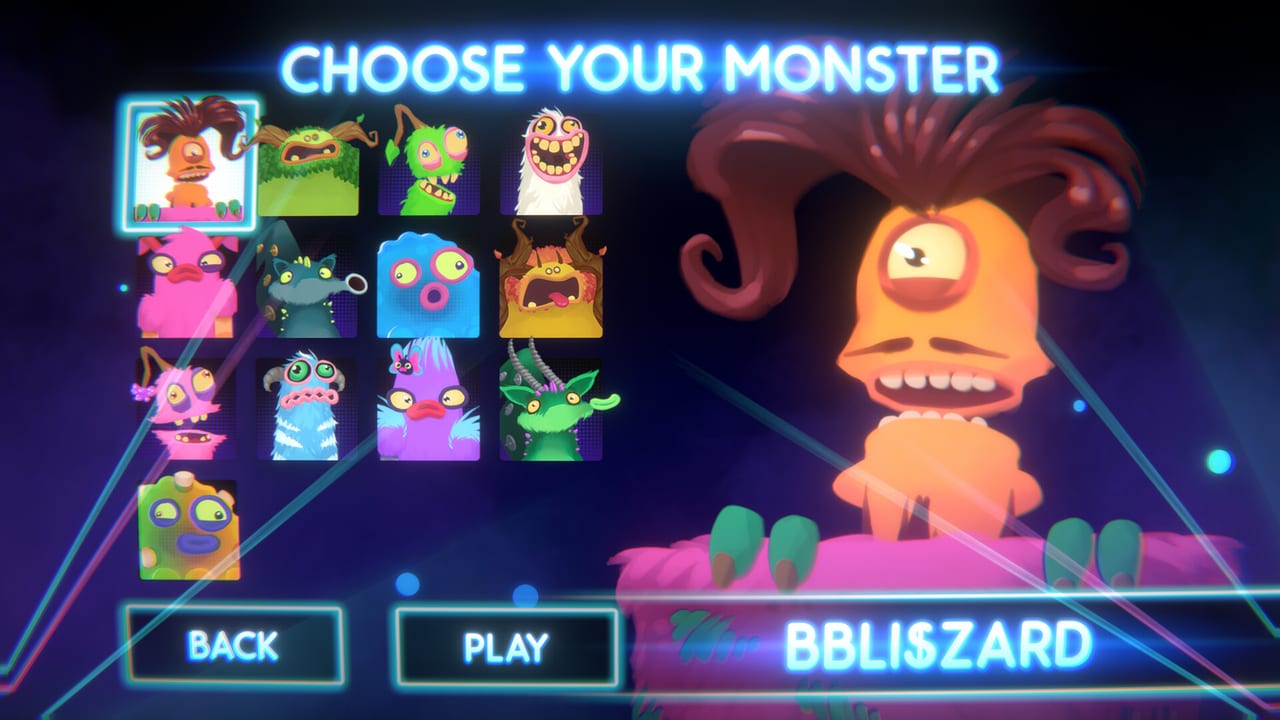
My Singing Monsters Karaoke is short on purpose, but a new player still spends the first hour juggling an unfamiliar pitch ribbon, a tiny character select, and a quirky judge panel. This walkthrough is a single ordered route through that hour, the same one the developers seem to have in mind when they list eight free Monsters, fourteen achievements, and a free Day One Pack on the store page. Follow it top to bottom the first time, then treat it as a checklist when friends ask how to start.
This page is built to be used with audio off or audio on. Where a step depends on a button prompt or a sound, the wording says so. Where a step is opinion, the wording also says so. There are no hidden codes to type. There is no Workshop to subscribe to. The only verbs that exist in Karaoke are install, claim, pick, follow, laugh, repeat. If a guide elsewhere talks about eggs or diamonds, you have been sent to the mobile game by mistake; the Karaoke vs mobile page will sort you out.
Step 1 — Install the free base game
Open Steam and search for My Singing Monsters Karaoke, or use the Links Hub. Confirm the publisher reads Big Blue Bubble. The free client is the only thing you need to start. The download is roughly two gigabytes; a modern laptop finishes in under ten minutes on a normal connection. The install only asks for a folder and your Steam password. If a website asks for anything else, leave; that is not how the official client ships.
Once the install completes, do not launch immediately. Step 2 should be the very next click, because Day One Pack is the kind of free DLC that players forget to claim and then post about in year-old forum threads.
Step 2 — Claim Day One Pack before you launch
Day One Pack is the free Steam DLC that unlocks Rare Furcorn. The pack is a separate Steam item, app id 5021110, sitting in the Karaoke DLC list on the store page. Add it to your library while you are still logged into the same account that owns the base game. There is no code to type and no popup to dismiss. The singer appears in the character select after the next launch.
Claiming before your first run matters for two reasons. You get a smoother character grid the first time you open the picker, and you avoid the awkward bug-shape where DLC that attaches while the game is open misses the character scan. If the picker still only shows eight after you claim, quit the client fully and relaunch; the file watcher is the usual culprit, not your account.
Step 3 — Confirm your PC meets the modest spec
Karaoke wants Windows 10, 4 GB of RAM, DirectX 11, and a GTX 650-class GPU as the floor. The recommended block is Windows 11 with a GT 1030-class card. Most laptops that ship today exceed both lists. If your laptop is older, lower capture resolution in OBS before you suspect the GPU; a 2 GB toy chugs because of overlays far more often than because of hardware.
Mac and Linux do not appear in the spec block. Do not chase a sideloaded APK that uses the Karaoke name; that is the collector game under a different store. Steam Deck is a special case that lives on the Steam Deck guide, not here, because handheld play is its own rabbit hole.
Step 4 — Launch and read the menus instead of skipping them
Karaoke’s first launch shows the title art, the Big Blue Bubble splash, and a small character select. Resist the urge to mash through. The character grid is the launcher of the entire toy: it teaches you the eight faces, the free Rare Furcorn you just claimed, and the BBli$zard cameo. Spend two minutes hovering. Hovering does not start a song, but it does show you the squash animation that everyone talks about in reviews.
The settings menu is the second reason to slow down. You can adjust music volume and character volume independently. The lack of a usable menu SFX slider is a known complaint that lives on known issues, so set the music slider generously before you start a song. There is no microphone toggle because the game does not take microphone input. There is no online match toggle because the game is single-player.
Step 5 — Pick a singer you already like from mobile
If you have played the My Singing Monsters mobile game, pick a singer whose voice you already tolerate. Entbrat will still bellow. Furcorn will still squish. Sox will still sound chill. Karaoke does not remix a sample into a different genre. The launcher is a stage, not a producer. New players without mobile context should start with Mammott or Sox; both have readable vowels and forgiving slides. Avoid Entbrat on a first run if your laptop fan is loud; the bellow and the fan become a duet nobody asked for.
The launch roster page breaks down all eight faces. The Monster tier list is a community feel chart if you want opinions before you commit. Neither tier ranking changes the mechanics; both save you from a wrong-first-pick regret.
Step 6 — Pick a short, familiar official track
The bundled library includes Plant Island, Cold Island, Earth Island, Air Island, Water Island, Amber Island, Wublin, and Fire Haven flavors, plus remix folders. Start on Plant Island. Plant is the franchise handshake; you have heard it before, even if you never realized you were hearing it. That familiarity is the whole reason it is the recommended first song. Cold Island works as a second pick for the same reason, with the warning that some Cold material still feels like an older mix according to Steam reviews.
If you have a flight stick or a novelty slider, do not bind it yet. Official songs are the control group. Bind only after one clean-ish run so you can tell whether the latency is your hands, the chart, or the hardware. The controls reference is the short table; the controls essay is the long one.
Step 7 — Watch the ribbon, not the singer, on run one
The pitch ribbon is the green line that snakes down the center of the stage. Notes sit on the line. Slides are continuous, not staircases. Hold when the line holds. Travel when it travels. Your hands are the conductor; the Monster’s vocalization is the cartoon. The singer will still look ridiculous if you miss every note, and that is part of the joke. Pitch Perfect is the cleanliness quest; comedy is the alternative and is also valid.
Run one should end with you feeling how a slide feels. The achievement for staying glued is Pitch Perfect, and Steam lists it without a published threshold. Practice the ribbon, not a fake star count.
Step 8 — Run two is the disaster run
The same song with the deliberate intent to wander. You are not trying to fail; you are trying to see the squash animation up close. Toe Jammer’s belly becomes a trampoline when the ribbon leaves the line. PomPom’s tongue will leave the screen. Tweedle’s face will not survive a stacked miss. This is the joke. Do not skip it because a streamer told you the game is thin; the comedy is the entire design.
If the disaster run breaks your motivation, stop playing. The Can’t Get Enough achievement in Steam’s highlight strip is literally a break request. Set the game down. Touch grass. Come back later.
Step 9 — Import a custom song only after one official run
The bundled library is short by design. Custom chart databases are where Karaoke stretches into a hobby. Local files only; there is no Steam Workshop. Start with a pack whose audio you already enjoy, not a meme folder. Follow the import custom songs guide and tick the chart import checklist before you blame your hands. Most silent fails are folder shape, not rhythm.
If a custom chart claims impossible notes, retire it. Charts made for other pitch games can exceed Karaoke’s note range. That is a file mismatch, not a hidden hard mode. Keep a works folder and a broken folder; your memory is the library.
Step 10 — Decide on DLC and family sharing
Rare Pack is $1.99 and adds seven Rare forms. Day One Pack is free and is already in your library. Rare Pack and DLC packs are the comparison pages. Buy only if you already smiled at the squash animation; if you bounced after one song, the review already warned you that two dollars does not buy a new mode.
Family Sharing works for the base client. DLC follows Steam’s usual rules. This wiki cannot toggle entitlements from here. If a shared library hides the pack, check the parent account’s DLC list rather than assuming the kid’s install is broken.
Step 11 — Tour the eight if you care about achievements
Fourteen achievements shipped on day one. Eight are singer badges named after the launch roster. Can’t Get Enough is the break badge. Pitch Perfect is the cleanliness badge. The remaining three or four are not in the highlight reel; treat them as surprises until Steam reveals their names. Play the eight singers as a tour. Use the same official track each time. That is the cheapest 100 percent route.
If you want extra faces for vanity, the tier list still ranks Rares on the same axis as commons. DLC faces do not earn a higher letter just because they cost money.
Step 12 — Stop when the toy stops being fun
Karaoke is a twenty-minute toy that fans stretch into an evening. That is the entire design. If you finish the walkthrough and want more, the review and the known issues are the honest post-game. If you want less, you have finished. The studio put a Can’t Get Enough badge in the highlight strip on purpose; that is your cue.
When a Steam news post adds a new singer, a new island bed, or Workshop, this walkthrough gets a Step 13. Until then, this is the complete first-hour route.
Frequently Asked Questions
Quick answers to the most common questions.
How long is the first hour in real time?
About forty-five minutes for the install and one official song twice. The remaining fifteen minutes covers DLC claim and a tour of the eight singers.
Do I need to import a custom chart to finish the walkthrough?
No. The walkthrough uses the bundled Plant Island bed. Imports are a Step 9 detour, not a Step 7 requirement.
What if I skip Step 2 (Day One Pack)?
You can still launch and play. Rare Furcorn simply is not in the picker until you claim the DLC and restart the client.
Can I play this on Steam Deck?
Yes, but Valve marks it Unsupported. Read the Steam Deck guide before chasing achievements on a handheld.
Where do I get help if a step fails?
Big Blue Bubble Helpshift, linked from the Links Hub. The wiki cannot read your crash log.