My Singing Monsters Karaoke Controls Reference
The short table. Read the full controls guide if a line here is not enough.
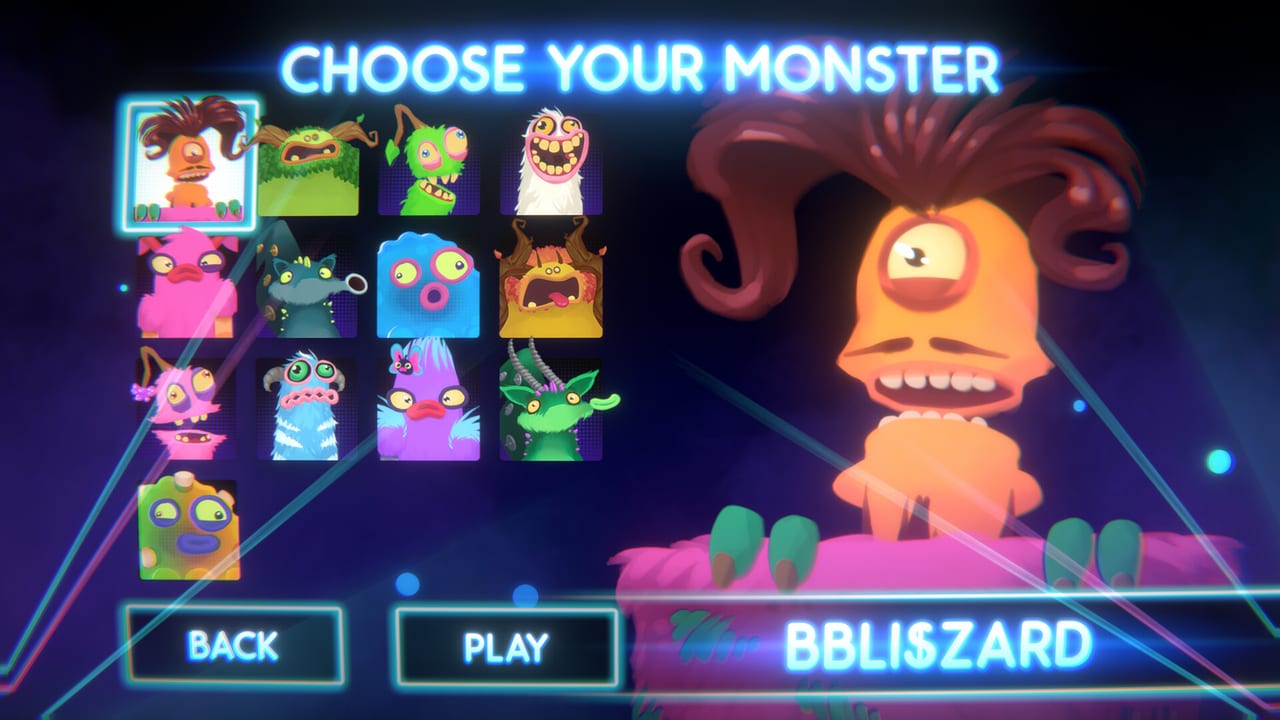
Keep this controls reference next to the client. The essay lives on controls. My Singing Monsters Karaoke only needs one honest axis: pitch up and down, with the ability to hold a slide. Everything else is optional theater.
Default idea, any device
Map a single analog axis or a pair of keys to pitch. Prefer analog for the connected slides community videos showed. Digital taps turn portamento into stairs. Pause exists. A microphone does not. If you are looking for push-to-talk, you wanted a different karaoke game.
Calibrate on an official island bed from song picks, not on an imported boss chart.
Keyboard and mouse
Use whatever the in-game prompt shows after a fresh install. If you rebound keys for another Steam title, check this game’s profile. A WASD movement preset from an FPS will feel like nonsense. You are not walking a Monster around an island.
Gamepad and Steam Input
Steam lists Partial Controller Support. Bind one axis. Disable extra gyro unless you already play pitch games that way. Save a Karaoke-specific Steam Input profile so a racing preset cannot steal launch.
If glyphs are missing, that is partial support, not a broken GPU. The system requirements page is unrelated unless the client stutters.
Custom hardware
Flight sticks and novelty sliders are allowed and even advertised. Bind the lever to pitch. Do not bind pitch to a hat switch. PAX used this gag; your living room does not require it.
Steam Deck
Expect extra mapping work. Test at the dock with a keyboard if Pitch Perfect feels impossible. On-screen keyboard complaints showed up in reviews. Achievement hunting handheld is optional masochism.
Volume gotcha
Players reported music and character sliders without a useful menu SFX slider. If the UI screams when you leave a song, that is known issues, not a keybind.
Related pages
How to Play, Tools Hub, import checklist if the chart is the villain, Guides Hub for the long reads. Print this page mentally: one axis, official song, then hardware toys.
If two devices fight, unplug the novelty stick before you diagnose the keyboard. Windows will happily send both to the same pitch axis and the Monster will vibrate like a phone on a table. One device at a time is a troubleshooting step, not a lifestyle.
Streamers should bind pause to a key they can hit without looking. The joke faces are stream-friendly; accidentally leaving the ribbon while you talk is also stream-friendly in a way you may not want. A dedicated pause key is cheaper than an apology overlay.
Rebind only after one official song on defaults. People who remap first cannot tell whether BBB’s defaults were fine. The booth stick is a second session toy, not a first-boot requirement.
If a child is playing, disable steam overlay hotkeys that open browsers mid-song. A pitch toy plus an accidental store page is how sessions end. The overlay is fine for adults who want the achievement popup; it is optional noise for everyone else.
If the ribbon moves when you move, controls are done. If it does not, stay here. If it moves and still looks ugly, that is the joke working.
Frequently Asked Questions
Quick answers to the most common questions.
What is the one control that matters?
Pitch. Hold slides, do not tap them like a four-key rhythm game.
Do I need a special stick?
No. Custom controllers are optional spice advertised on the store.
Why does my pad feel unfinished?
Partial Controller Support. Use Steam Input and a dedicated profile.
Where is the microphone bind?
There is none. The Monster sings. You steer.